PII in the browser
Use Admin, PII to decide which columns and measures contain personal data. By default, only admins change rules. You also need pii_reader to read protected metadata; being an admin alone does not grant it. The PII page itself shows each rule’s table and column names and its coverage. Read PII for the rules, CLI commands and query checks and their limits.
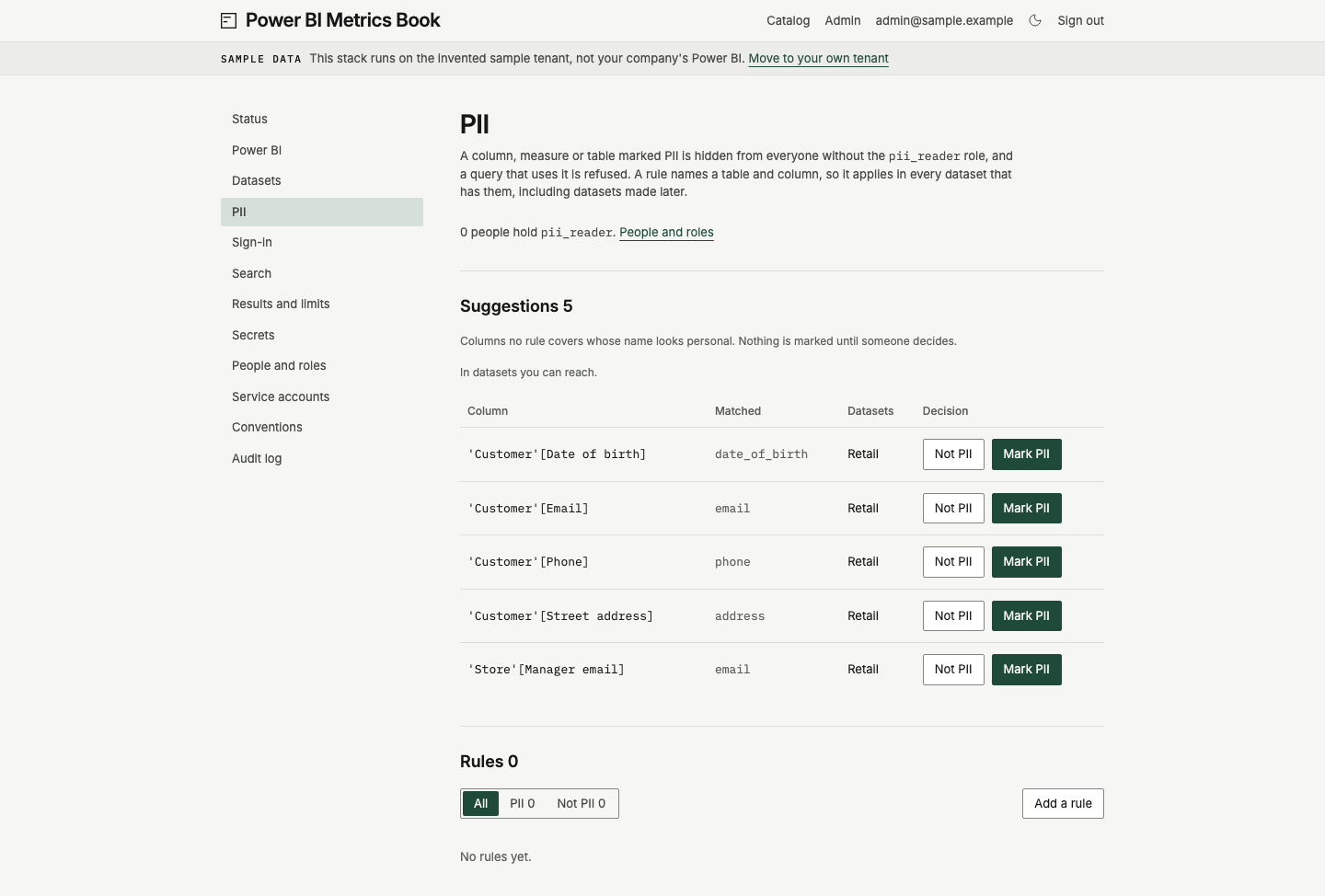
The page shows how many people hold pii_reader. Follow People and roles to manage access. Rules apply by name across every matching dataset, including datasets found later.
Decide a suggestion
Section titled “Decide a suggestion”Suggestions appears when an uncovered column’s name looks personal. Each row shows the column, the matched word and the datasets that contain it. In datasets you can reach. means suggestions use the datasets you may see, including off datasets. Nothing is marked automatically.
Choose Mark PII to protect that table and column name in every dataset that has them. Choose Not PII to record that you reviewed it and it is safe. The suggestion disappears once a rule covers it. The message reports what the rule covers and offers Undo.
Add or remove a rule
Section titled “Add or remove a rule”- Under Rules, choose All, PII or Not PII to filter the list. Each rule shows its reference, decision, coverage, who set it, how and when, and any note.
- Choose Add a rule. Choose A column, A measure or A whole table.
- Enter Table and, for a column or measure rule, Column or Measure. Enter names without the DAX brackets. You can add a Note for the next admin.
- Choose Mark PII or Mark not PII. A whole-table rule covers every column now and later, but no measures. Names match across datasets, ignoring case and character width differences.
Coverage says datasets you can reach. A count of zero does not mean the rule protects nothing elsewhere. A column rule takes precedence over a table rule. Marking a column not PII can leave that column visible inside a protected table.
Choose Remove beside a rule to delete that decision. Removing a Not PII column rule can make the table’s PII rule apply again. The message offers Undo after saving or removing a rule. Undo restores the previous definition as a new decision attributed to you. If another admin changed the rule since, Undo refuses and says Nothing was undone. Read the current rule before deciding again.
Mark a column in the catalog
Section titled “Mark a column in the catalog”Open a dataset’s Diagram and select a table. Hover or focus an unmarked column’s row to reveal Mark PII. On a touch screen, the control is visible without hovering. Choose it once to mark the column across matching datasets. The message offers Undo, with the same check for a later change.
With pii_reader, you see PII beside protected columns in the panel. As an admin, choose that tag to open the PII page. Find the rule there to remove protection. Without pii_reader, protected columns are omitted and the panel shows a count hidden as PII.
Check on the sample tenant
Section titled “Check on the sample tenant”On a fresh sample stack, open Admin, PII. Find 'Customer'[Phone] in Suggestions and choose Mark PII. A rule appears with Set by admin@sample.example in the browser and its coverage. Choose Undo in the message. The rule disappears and the suggestion returns.