Browse the catalog
The catalog shows what each number means and the Power BI measures that compute it. Sign in and choose Catalog in the header. You see the book through your own access. The screenshots below show only the invented sample tenant.
Find your way
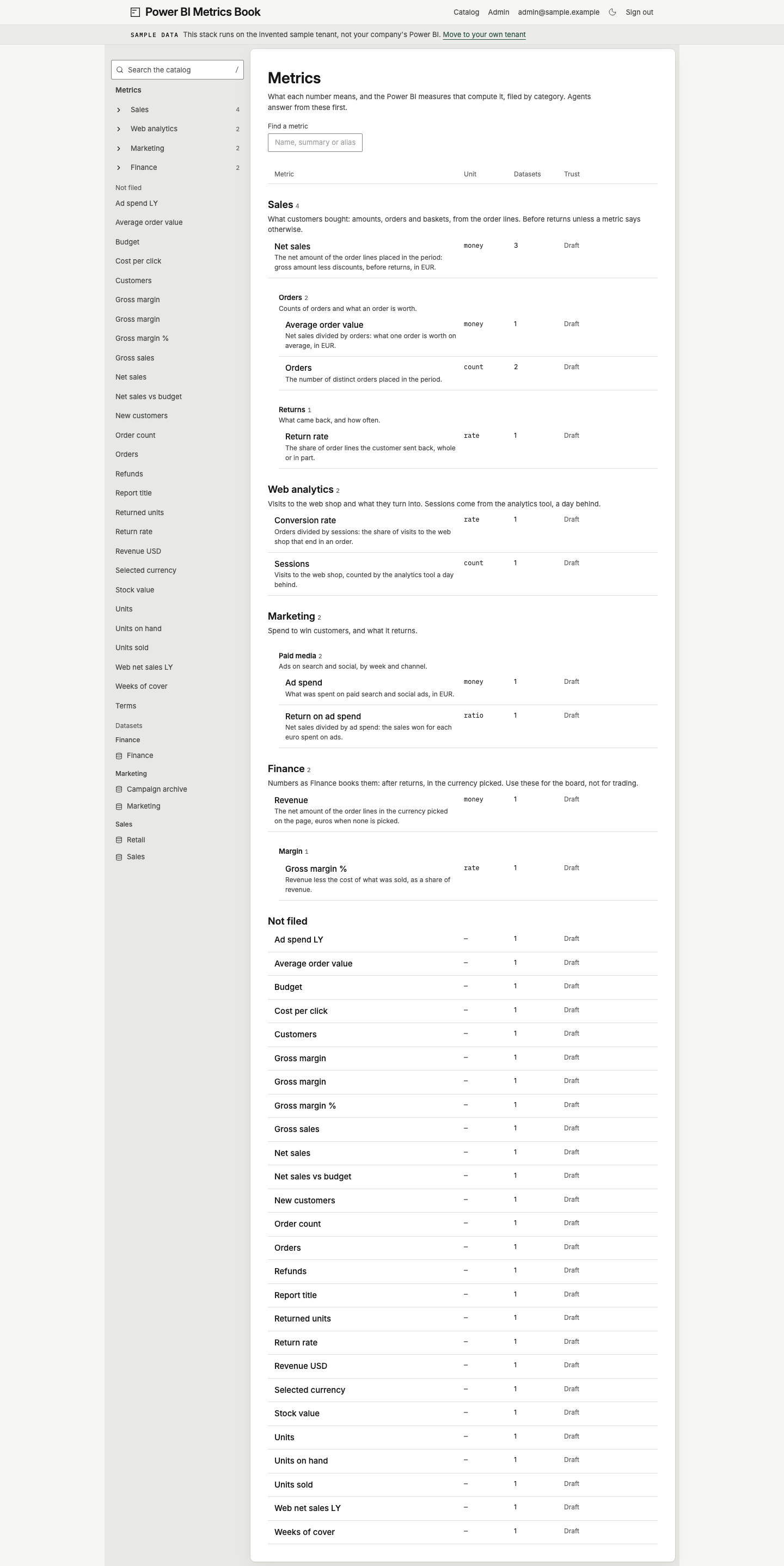
Section titled “Find your way”The tree on the left holds Metrics by category, Terms, and Datasets by workspace. Open a category’s arrow to see its children. Choose its name to read its description, subcategories and metrics. A category’s count includes its subcategories. The tree opens the path to the metric you are reading.
On the Metrics home, categories appear in order with their descriptions. Not filed holds metrics without a category. Each metric row shows its summary, unit, dataset count and trust: Approved by a person, Checked by an agent or Draft. Dismissed metrics are left out.
Use Find a metric to filter the home by name, summary or alias. Use Search the catalog in the tree to search metrics, terms and datasets together. Press / to focus it when you are not typing in another field. Type at least two characters, use the arrow keys to choose a result, then press Enter. Escape closes the results. On a phone, open Browse the catalog to reach the tree and search.
Read a metric
Section titled “Read a metric”Choose a metric to read Definition, When to use it and Not the same as. Its properties show the unit, category path, owner, Also called and linked terms. Not written yet means the book has no text for that field.
Under Variants, compare each measure’s dataset, period or other shift, and DAX. Copy beside the DAX copies the expression when Power BI lets you read it. Show Order lines in the diagram opens that dataset with the measure’s table selected and in view.
Read Open questions before relying on the metric. Curators and admins can also read History, see the checks and use Approve. See For curators: approving for what approval means. Ask your agent or use the CLI to change definitions or filing.
Read a term
Section titled “Read a term”Choose Terms, then a term. Its page shows Dimension or Concept, its trust, definition, Not the same as, Also called and Values. Under Columns, Show in the diagram opens the table that holds the term. Under Metrics, follow the numbers that use it. A concept can have no backing column.
Read a dataset diagram
Section titled “Read a dataset diagram”Choose a dataset under its workspace. The header names the workspace, storage mode, endorsement when present, row-level security when set, where relationships came from and when it synced. Use Diagram, Tables, Measures or Relationships to change the view. Each list tab shows its count, unless relationships are unknown.
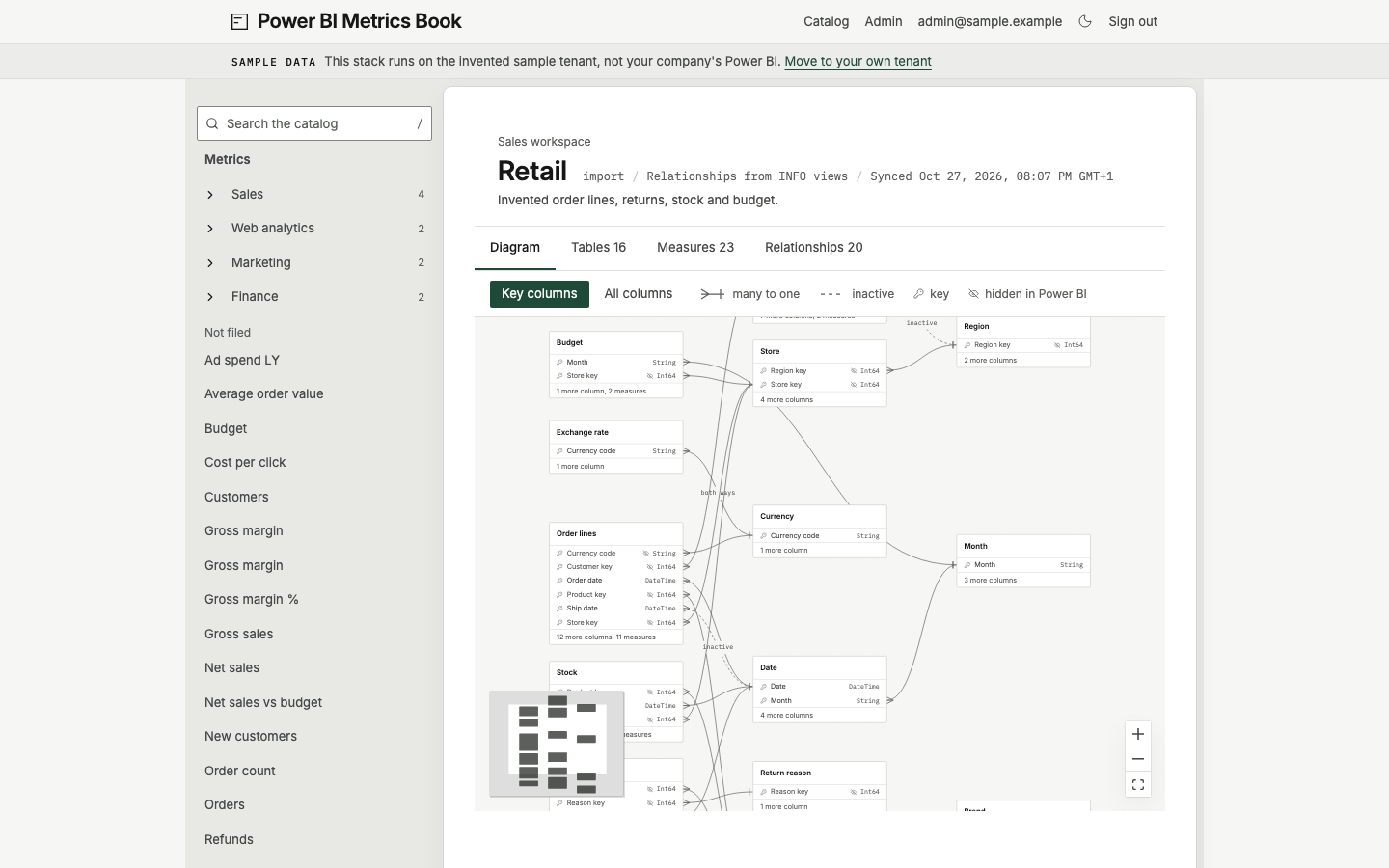
Key columns shows the columns at either end of a relationship. The foot of each table counts the other columns and measures. Choose All columns to see the rest. The key icon marks a relationship column. The crossed-out eye means Power BI hides the column. Neither icon means PII.
Read a line’s ends to understand the join: a crow’s foot means many, and a bar means one. A dashed line marked inactive is used only when a query activates it with USERELATIONSHIP. both ways means filters travel both ways. Click a line to read its exact column references, Cardinality, Filters and State.
Hover a line or table to highlight its relationships. Select a table to keep its neighbours highlighted and read its description, columns, measures by display folder and relationships in the panel. Choose a relationship in that panel to read it without clicking a line. You can also focus a table with the keyboard and press Enter. Click empty canvas, press Escape or use Close panel to clear the selection.
Scroll to move through the diagram, pinch to zoom, or use its zoom controls. A tall model has a minimap at the bottom left. A model too wide to fit at the initial 60% zoom floor starts at its left edge. Selecting a table keeps it in view without fitting the whole diagram again. You can drag tables, but their positions are not saved. Changing the columns view also lays them out again.
When relationships are unknown
Section titled “When relationships are unknown”Relationships unknown means the book could not read the relationships. It does not mean the model has none. In the Diagram tab, No lines drawn. and the explanation appear above tables arranged in a grid.
Follow that explanation. You may need to connect Power BI under Connections, ask the dataset’s owner for the Build right, or try again in a few minutes. If Power BI refuses INFO functions on the dataset, ask its owner in Power BI. The book tries again after the model next changes. On the sample tenant, Marketing shows this state.
If you see No tables to draw, Power BI could not give the schema. The page explains that the next sync reads it again after the model is refreshed.
PII in the table panel
Section titled “PII in the table panel”With pii_reader, you can see a PII tag beside a protected column. Without it, the panel reports how many columns are hidden as PII and leaves them out. Admins can hover or focus an unmarked column to reveal Mark PII. See PII in the browser before changing a rule.
Check on the sample tenant
Section titled “Check on the sample tenant”Open Catalog, choose Terms, then Channel. Choose Show in the diagram beside a backing column. The dataset opens with that table selected and its panel visible. Choose Relationships to read the same joins as rows.